Showing posts with label examples. Show all posts

Monday, 22 February 2016

Comparing with the previous row using Microsoft Power BI

This is something which has come up recently at work which at first glance seems like it should be straight forward (tl;dr it is when you know how) but if you're new to Power BI or Power Pivot then it's something which takes some thinking about.  Please note that for this post I will be sticking with Power BI, but if you want to see how this can work with Power Pivot then have a look at Dany Hoter's post over at PowerPivot(Pro).

The Problem

Let's say that you have some data, which is spread over time and you want to be able to create a BI visualisation showing how that value changes as a delta from the previous value.

Implementing a solution

To walk through how to do this, in a way which is hopefully easy to follow, I'm going to grab some sample data which is available on-line.  That data is is the Annual Sheep Population in England & Wales 1867 - 1939 (measured in 1000's) from DataMarket.  No idea why I picked sheep populations but there we go.

The goal here is to be able to create a simple chart which can show the sheep population for a given year and the population difference from the previous year (except for 1867 which should show a difference of 0).

So step 1 is to go and download the data, I've opted for CSV for this example but if you want to try another format then go for it.  Once you've downloaded the data fire up Power BI.

Connecting to the data source

Once Power BI has opened hit "Get Data" to connect to your data source and follow these steps:

Getting data into Power BI
  1. Select the CSV connector
  2. Navigate to and open the sample data set from your local machine
  3. Once the preview window has opened select the "Edit" button

Configuring your data source

One of the first things I've done is renamed the query over in the Query Properties section to "sheep", you don't have to do this but it makes things easier to read for me and also makes the screen shots a little less cluttered.

If you look at your data in the Query Editor window and scroll to the bottom you'll see that there are 3 rows which were in the CSV file which aren't part of the data.  To get rid of these select the "Remove Rows" button from the ribbon and then select the "Remove Bottom Rows" option.  When the option dialog appears enter the value "3" and press "OK", this will remove the rows from the bottom of the data set (scroll down and check).

Removing rows from the query
Next we'll rename the columns to "Year" and "Annual Population", the first of these is fine but the second column will need to be changed, do this by right-clicking on the column title and selecting the "Rename" option.  Alternatively you can select the column and use the "Rename" item in the "Transform" ribbon section.

Now right-click on each column title and under "Change Type" select the "Whole Number" option.  This will ensure that we are working with the data correctly, and you'll notice that the year was mostly likely set to "Text" because of the content of the rows we previously removed.

Almost there, now we need to sort the "Year" column in ascending order, you can use the options in the ribbon or click on the drop-down menu next to the column title and select the correct sort option.

Finally we need to add an index column (we'll see why in a bit) to the data source, in the "Add Column" ribbon.  If you don't select any options then the default is to start from zero, which we'll do in this example, but you can choose to start from 1 or a custom value with a custom increment.  You can leave this new column name as Index.

Adding the index column
Now that we've done all of the prep work you can click the "Close & Apply" option under the Home section in the ribbon.

Creating the new population difference column

Back in Power BI we'll need to be under the "Data" section on the left.
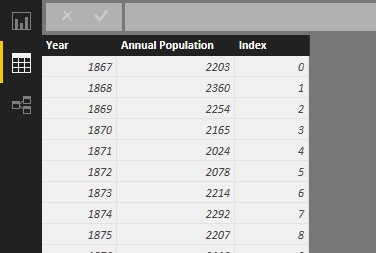
Viewing the data in Power BI
From here add a new column to the data collection by right clicking on the "sheep" (or originally named query if you didn't change it earlier) and selecting the "New Column" option.

Adding a new column to the query
You'll now have a new column imaginatively called "Column" and a query expression editor at the top.  Just to get something for the moment let's enter the following:
Column = SUM(sheep[Annual Population]) 
This will give us a new column called column where every row will now have the sum of the Annual Population column.

Our first new column
As you can see this isn't particularly useful so lets change that expression to something a bit more useful for our purposes.
Population Difference =
'sheep'[Annual Population] - IF(
'sheep'[Index] = 0,
'sheep'[Annual Population],
LOOKUPVALUE(
'sheep'[Annual Population],
'sheep'[Index],
'sheep'[Index]-1)
)
That's quite a lot to take in so we'll break it down a bit and talk through what this is doing.

The first bit is quite simple as we're just saying to take the current sheep population and subtract a number from it.  When we get to the IF statement we're checking to see if the current Index is 0 (I created my Index column to start from zero) and if it is return the current sheep population, this is so that we get a difference value of 0.  If the current index is not zero then we're doing a lookup, with this we're looking up the sheep population value by checking the Index column for a value which is the current Index value less 1 (i.e. the previous value).

If we change our column to this expression we should get the following.

Our data with a population difference value

Visualizing the data

From here we can go back into the Reports section and create a number of visualizations against this data.  Here I've provided an example where I'm using the "Line and Stacked Column Chart" visualization with the annual population for the column values and the population difference for the population difference.  Play around with it and see what looks good for you though.

Visualizing the data

I've provided the data and the pbix file for download if you want to have a look at the version I've put together and play around with it.  Just click on the OneDrive link below.


Coming up next...

One other thing that comes up once in a while is producing a moving value such as a moving average. Next post we'll extend this basic example to show how we can accomplish this.

Friday, 16 December 2011

C++11: Lambda Expressions

Posts in this series
Getting started with C++11
C++11: Initializer lists and range-for statements

So what is a lambda expression?
A lambda expression is way in which to write a function in-line in your code, the typical use case is where you call a function which expects a pointer to another function in order to tailor it to your own needs.  For example, if you had a list of integers (4, 1, 6, 2, 13) and you wanted them sorting, you would typically call a sort method, passing it your list of integers.  Now that sort method may accept a pointer to another function in which you can specify how your list is to be sorted, typically this means that you would have one function defining how to sort in an ascending manner, and another defining a descending manner.  Lets start with an example as to how you would currently do this.
  • bool SortAscending(const int x, const int y)
  • {
  •     return x < y;
  • }
  • ...
  • vector<int> myList = { 4, 1, 6, 2, 13 };
  • sort(myList.begin(), myList.end(), SortAscending); // 1, 2, 4, 6, 13
Full example code

So now, if we wanted to sort this in a descending manner then we would need to write a new method to tell the sort algorithm how to sort the values and pass this to the sort method.

This is a really simple function so why do we have to write a whole method for it?  Well using lambda expressions we no longer have to, with the above being written as follows instead.
  • vector<int> myList = { 4, 1, 6, 2, 13 };
  • sort(myList.begin(), myList.end(), [](int x, int y) -> bool { return x < y; }); // 1, 2, 4, 6, 13
Full example code|

So what did we do here?  Well lets have a look at the lambda expression.
  • [](int x, int y) -> bool { return x < y; }
The opening brackets "[]" is a capture list, more on this later.  Next we define the expressions parameter list "(int x, int y)" just as we would if we were defining a normal method.

The next part is the return type "-> bool", this is an optional part of the expression and we could have easily left it out as the compiler can easily determine from the expression body that the return type is a bool; if the return type is not specified and the expression body does not return any value then a return type of void is deduced.  It is useful, however, to specify a return type if you want to explicitly instruct the compiler what the type being returned should be.

Finally there is the expression body which is every between the "{}" braces.

Capture lists
Sometimes when we use lambda expressions we may want to use or modify values from the surrounding code.  Normally we would just pass these in using a parameter, but with lambda expressions we have to provide a parameter list which the receiving method is expecting, in the case of the sort algorithm method, it is expecting an expression which takes two integers and returns a bool.

To access these surrounding values we can use capture lists.  You've already seen a simple use of a capture list in the previous example where we wrote "[]", this tells the compiler that we are not capturing any values for use in the lambda expression.  In this next example we are going to capture an integer variable called "stepCount" which will be incremented each time our lambda expression is used by the sort algorithm, this will tell us how many times the expression was used to completely sort our list.
  • int stepCount = 0;
  • sort(myList.begin(), myList.end(), [&](int x, int y) -> bool { ++stepCount; return x < y; }); // stepCount is 9
Full example code

The capture list this time is written as "[&]", this instructs the compiler to capture any local variables used in the lambda expression and pass-by-reference.  This allows us to have the sort method update a local variable in our calling code.  Another option for the capture list is "[=]" which tells the compiler to pass-by-value.  If we were to use this in our code however we would get a compiler error as any values passed by value are read-only.

There are other options available for capture lists, these are as follows:

[] Capture nothing
[&] Capture variables by reference
[=] Capture variables by value (make a copy)
[=,&foo] Capture foo by reference, all other variable by value
[foo] Only capture foo and do so by value
[this] Capture the this pointer of the enclosing class

One thing to be careful of here however is that if you return a lambda expression from a method (we'll see how in a second) and you are using a local variable in that method and capturing by reference then you are going to run into problems as the moment you return the expression the local variable you captured as gone out of scope.  Other than that hopefully you can see just how useful these are by now.

Accepting lambda expressions in my own code
One of the great new features in C++11 is the std::function type (and std::bind which I'll cover in a later post) which is a great way for us to start passing around lambda expressions as parameters or return types; in fact it allows us to use lambda expressions and functions.  The structure of the type is std::function<return_type (parameter list)>, so if we wanted to write a method that accepted a lambda expression we could write the following.
  • double Sum(const vector<double>& values, function<double (double x)> f)
  • {
  •     double result = 0.0;
  •     for (auto d : values)
  •     {
  •         result += f(d);
  •     }
  •     return result;
  • }
The "f" parameter is a function which takes a single double parameter and which returns a double value, this is then used in the method body as part of the accumulation process.  The method can then be used as follows.
  • double Complex(double x)
  • {
  •     double result = sin(x * 3.14159265);
  •     result -= floor(result);
  •     
  •     return result;
  • }
  • int main(int argc, char** argv)
  • {
  •     vector myValues = { 1.3, 2.1, 7.4, 9.6 };
  •     
  •     double result1 = Sum(myValues, [](double x) { return x; }); // 20.4
  •     double result2 = Sum(myValues, Complex); // 0.597887
  • }
Full example code

Here we're calling the "Sum" method twice, the first time with a lambda expression which simply returns the value passed into it so that we sum all of the values.  The second call passes a reference to the "Complex" method, which may not be that complex but illustrates the point about being able to pass standard methods as well as lambda expressions.

Lambda expressions provide an easy and convenient method of providing short functions to other other functions which require thema.  Even if you're not sure if you want to use lambda expressions, making sure that your methods use the std::function type means that you can carry on writing helper functions if you want to but that you or others have the option of using lambda expressions if they want to.

For the next post I should be looking at smart pointers, these give us the benefits of pointers in C++ but also provide better memory management, which can only be a good thing

References
CProgramming.com - Lambda Expressions in C++ - the definitive guide
Bjarne Stroustrup - C++11 FAQ

All code provided in this article is provided under a BSD license.  If you spot an error then please do let me know so that we can make this better for anyone else reading it.
Creative Commons Licence
This work is licensed under a Creative Commons Attribution-ShareAlike 3.0 Unported License.

Monday, 14 November 2011

Living in a "dynamic" C# world

Taking a brief break from the C++11 posts (I'm working on the next one, I promise), I thought I'd quickly cover a small problem I came up against in C# and how something I'd previously dismissed really helped me out.  If you want to try out any of the code below I'd strongly recommend looking at LinqPad which is a great tool for trying out sample code, expressions and for querying your databases using Linq.

I can't remember the number of times I've looked at the new "dynamic" keyword and thought of it as ugly, and I will admit that maybe I've not been it's greatest advocate.  Recently however I went on a training course during which we spent some time calling IronPython scripts from C#, so I could see a use for dynamic, but not so much outside of this use-case.

Today however I encountered a problem and the dynamic keyword came to my rescue.  The problem was this; I'm loading in data from an XML document (and no, XML is not my problem), this document has a number of sections which identify how to check something from another document, so it might have an entry which says "You're expecting a value in a field called 'x' of type 'y' and I want to check it like this...".  So as an example, say I'm picking up a value which is a double precision value, and I want to check it against another value of the same type but using a tolerance.  So if 's' is my source value, 'x' is my expected value and 't' is my delta then I would want to check it using the following:

// |s - x| < t
var s = 1.0005;
var x = 1.0004;
var t = 1.0001;

return Math.Abs(s - x) < t;

Great, but here's the problem, when I'm writing the code the function first needs to check the type and convert it from a string value to the correct type, which I only know about because the type is held in another variable.  Again, not too tricky as I can just write the following (where "type" is a Type variable holding the type I need to use):

var convertedValue = Convert.ChangeType(s, type);

The compiler has no problem with this and lets me carry on my merry way, but when I add the following line the compiler starts to shout and tells me I'm an idiot for even attempting to apply an operand of "-" to a type of "object" and "object"!

var sourceValue = "1.0005";
var expectedValue = "1.0004";
var tolerance = 1.0001;
var type = typeof(double);

var convertedSource = Convert.ChangeType(sourceValue, type);
var convertedExpected = Convert.ChangeType(expectedValue, type);
var result = Math.Abs(convertedSource - convertedExpected) < tolerance;

Console.WriteLine(result);

The thing is, I know that my converted values are doubles but I need to tell the compiler that I know what I'm doing here and it can compile this.  Well this is where "dynamic" comes to save the day, it allows me to bypass compile-time type checking and instead have this checked at run-time.  So changing the code to the following:

var sourceValue = "1.0005";
var expectedValue = "1.0004";
var tolerance = 1.0001;
var type = typeof(double);

dynamic convertedSource = Convert.ChangeType(sourceValue, type);
dynamic convertedExpected = Convert.ChangeType(expectedValue, type);
var result = Math.Abs(convertedSource - convertedExpected) < tolerance;

Console.WriteLine(result);

I get the expected result of "True" when I run the code.

I know there are probably other ways of doing this, and the example code I've presented doesn't exactly portray the complexity I was attempting to deal with, but I do think it's quite a nice little solution.  Hopefully after reading this you might also re-consider looking at the "dynamic" keyword, you never know when you might have a genuine use for it.

Creative Commons Licence
This work is licensed under a Creative Commons Attribution-ShareAlike 3.0 Unported License.